
Minimax M2.1 scores 91.5% on VIBE-Web at 1/20th the cost of Claude 4.5 Opus. Here's how to prompt it effectively in Firebuzz using plan-first workflows, Design Mode, and context attachments.
Minimax M2.1 is one of the most cost-effective coding models available in Firebuzz. It costs roughly 1/20th of Claude 4.5 Opus while scoring 91.5% on VIBE-Web—a benchmark that tests whether AI-generated applications actually run.
But raw capability isn't enough. M2.1 requires structured prompts to perform well. This guide covers the techniques that work.
The Core Technique: Plan First, Build Second
The biggest mistake with M2.1 is asking for a complete landing page in one shot. This often produces broken layouts—elements with zero height, collapsed containers, or missing sections.
Split the work into two phases:
Phase 1: Generate a Plan
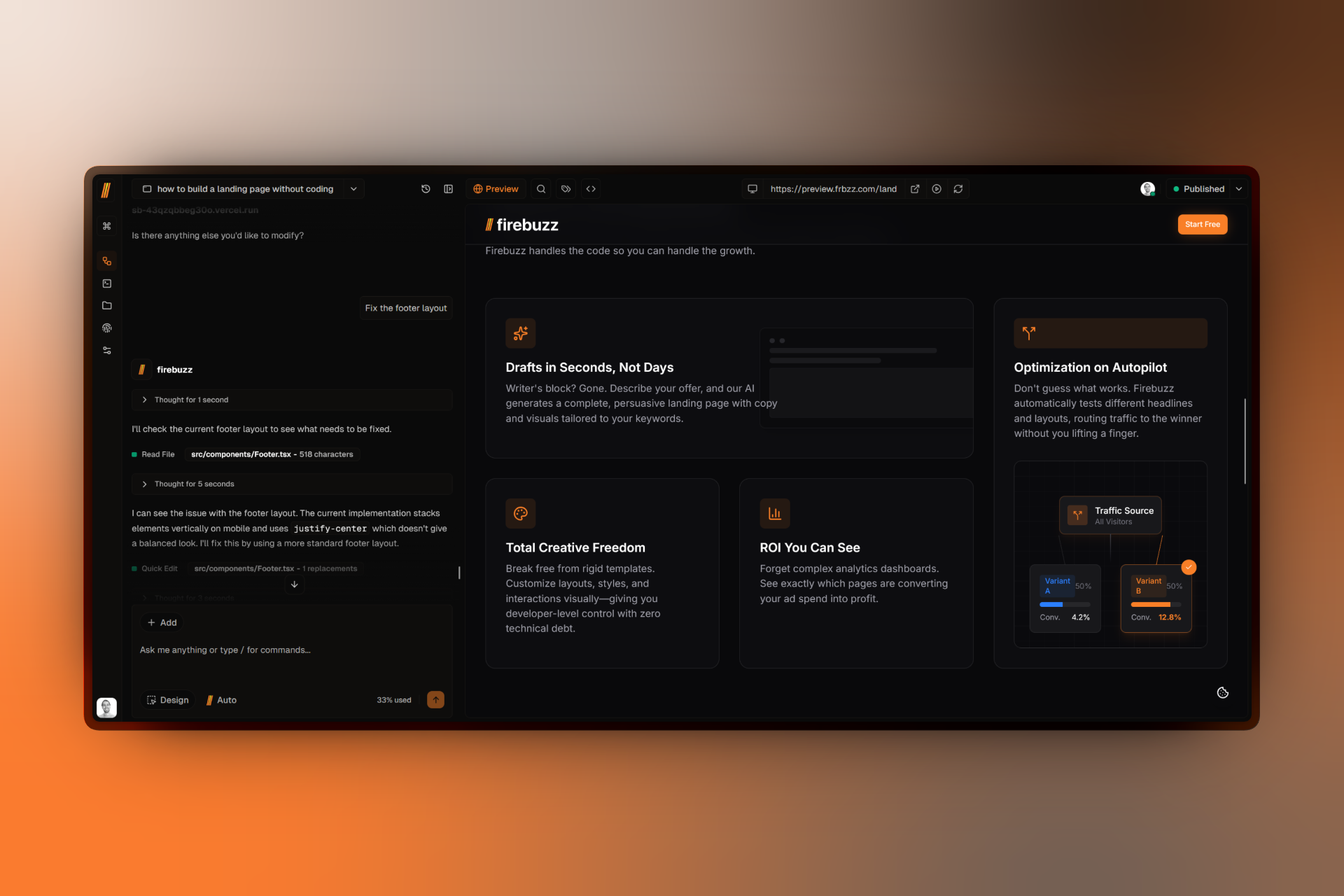
Start by asking M2.1 to outline the structure before writing code:
You are a frontend architect. Plan a landing page with these sections:
- Hero with headline, subheadline, and two CTAs
- Features grid (4 items with icons)
- Testimonials (3 cards)
- Pricing (3 tiers, highlight middle)
- FAQ accordion
- Footer

Output a component list with file names. Do not write code yet.
This prevents the model from getting lost in implementation details before the structure is clear.
Phase 2: Build with Explicit Constraints
Once you approve the plan, prompt for implementation with specific design constraints:
Build the Hero section.

Design constraints:
- Background: #020617 (dark blue)
- Heading: Inter Bold, 48px
- Subheading: Inter Regular, 18px, #94a3b8
- Primary CTA: emerald gradient, hover scale effect
- Layout: text left, image right on desktop; stacked on mobile
Explicit constraints prevent "AI slop"—generic purple gradients, rounded corners everywhere, and bland typography that makes all AI-generated pages look the same.
Example of a bad prompt:
Make the hero section look modern and professional.
Why it fails: "Modern" and "professional" mean nothing specific. M2.1 will default to generic styling.
Example of a good prompt:
Make the hero section use a dark (#0f172a) background with a large serif heading
(Playfair Display, 64px) and accent color #10b981 for the CTA. Add a subtle
gradient overlay from transparent to black at 20% opacity.
Leverage Firebuzz Features
M2.1 works best when you give it context. Firebuzz provides several features that reduce prompting overhead and improve accuracy.
Brand Identity
Configure your Brand Identity in Firebuzz Settings (Settings → Brand → Identity). This includes:
- Brand persona — Tone and voice (e.g., "Professional but approachable")
- Target audience — Who you're speaking to
- Value proposition — What makes your product unique
Once configured, prompt:
Write the hero copy using our brand persona and target audience.
M2.1 pulls your defined tone and audience data automatically. No need to repeat brand details in every prompt.
Tip: If your brand data isn't being used, check that you've filled in the persona section in Settings. Empty fields mean no context for the AI.
Design Mode
M2.1 can't see the UI it generates. When something looks wrong, don't describe it—select it.
How to use Design Mode:
- Type
/designin the chat (or click the Design Mode toggle) - The preview enters selection mode with a dotted border
- Click the element you want to change
- The element is highlighted and attached to your message
- Type your fix:
Make this button larger and add a shadow - Send
Design Mode eliminates "which element?" confusion. Instead of saying "the button in the hero section on the right side," you point directly at it.
Common Design Mode prompts:
| Problem | Prompt |
|---|---|
| Spacing issues | Fix the padding to 24px on all sides |
| Wrong colors | Change this background to #1e293b |
| Typography | Make this heading 36px and bold |
| Layout | Center this section and limit width to 1200px |
| Visibility | Make this text white for better contrast |
Slash Commands
Firebuzz supports these slash commands for quick actions:
| Command | What it does |
|---|---|
/design | Toggle Design Mode |
/images | Open your image gallery |
/upload | Upload new files |
/documents | Attach documents from your knowledge base |
/components | Add UI components as context |
/model | Switch to a different AI model |
/summarize | Compress long conversations to save context |
/clear | Start a fresh conversation |
Tip: Use /components to attach an existing component when you want M2.1 to use its style as a reference:
/components → Select "Card" → "Use this card style for the pricing tier boxes"
Attaching Reference Materials
You can attach files to give M2.1 more context:
- Images — Drag and drop or use
/upload. Up to 5 images, 50 MB each. - Documents — Use
/documentsto attach PDFs, CSVs, or text files from your knowledge base. - Components — Use
/componentsto attach existing UI components.
Use case example:
/upload → [brand-guidelines.pdf] →
"Follow section 3 of this document for the color palette and typography in the hero section"
M2.1 will reference the attached document when generating the code.
Benchmark Context
Why use M2.1 over other models?
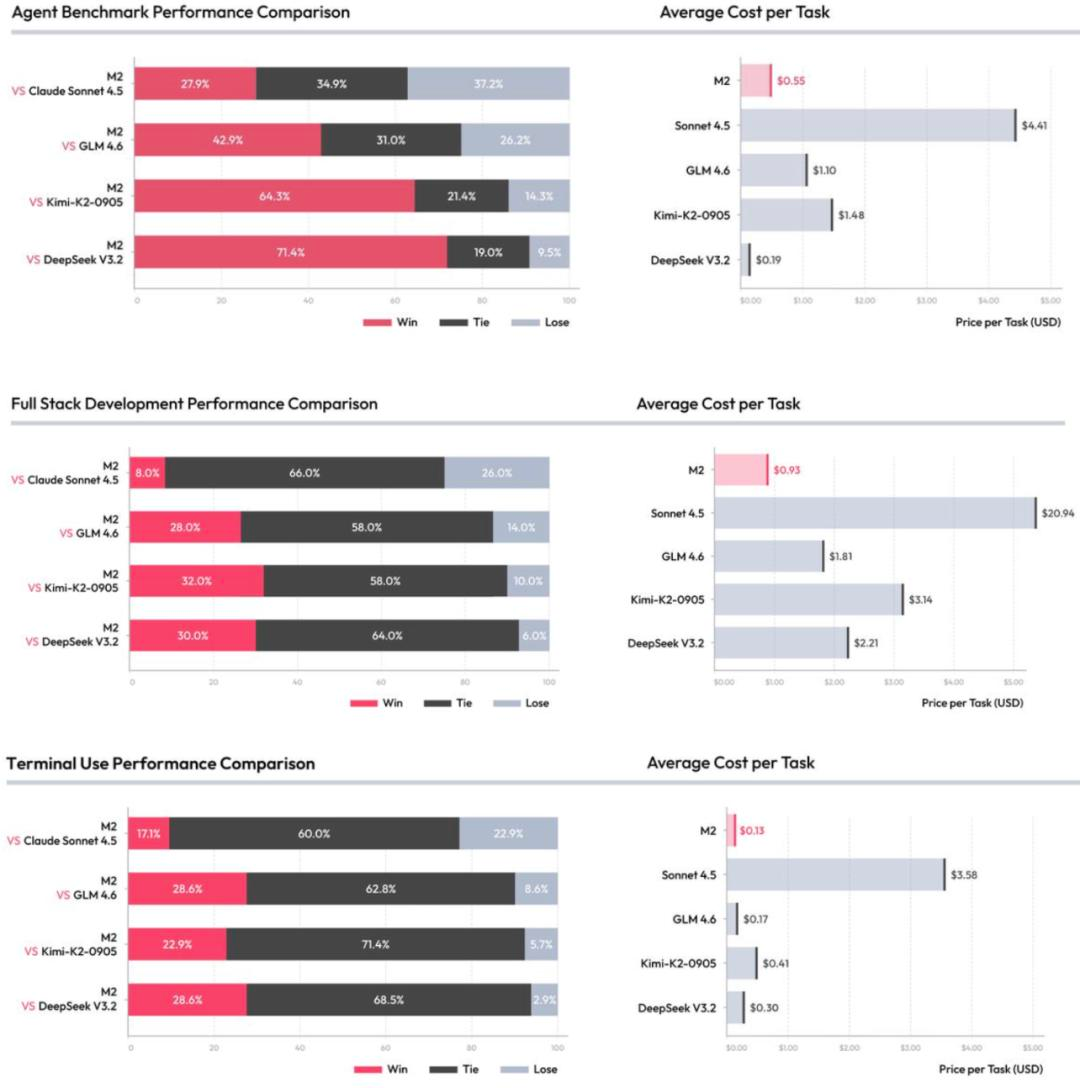
| Metric | Minimax M2.1 | Claude 4.5 Opus |
|---|---|---|
| VIBE-Web | 91.5% | — |
| Output cost | $1.20/1M tokens | $25/1M tokens |
| Context window | 200k+ tokens | 200k tokens |
| Cost ratio | ~1/20th | Baseline |
M2.1 handles large codebases without losing context, making it suitable for multi-file landing page projects where you're editing several components in one session.
When to Switch Models
M2.1 isn't always the best choice. Use /model to switch when:
- Complex layouts failing → Try Claude Sonnet 4.5 for better spatial reasoning
- Need speed → Gemini 3 Flash is the fastest option
- Detailed code logic → GPT-5.1 Codex Max handles complex TypeScript well
You can switch models mid-conversation. The new model picks up the existing context.
Common Pitfalls and Fixes
Compressed layouts
CSS outputs with zero width or height. The page looks collapsed or invisible.
Fix: Add explicit dimension constraints to your prompt:
Ensure the hero section has min-height: 600px and the container is max-width: 1280px
Hook confusion
M2.1 sometimes treats React Query's useQuery return value as raw data instead of an object with a .data property.
Fix: Check hook usage manually or note in your prompt:
Remember that useQuery returns { data, isLoading, error }, not the data directly
Edit failures on large files
The model struggles with search-and-replace operations on files over 300 lines.
Fix: Use Design Mode to target specific elements instead of describing them. Or break the file into smaller components first.
Ignoring brand context
M2.1 doesn't use brand data if the fields are empty.
Fix: Verify your Brand Identity settings have content. At minimum, fill in the brand persona.
Summary
- Plan first — Ask for structure before code. Prevent layout collapse.
- Use explicit constraints — Specify colors, fonts, and spacing. Avoid vague terms like "modern."
- Leverage Brand Identity — Set up your brand persona once, reference it in prompts.
- Use Design Mode — Point at elements instead of describing them.
- Attach context — Use
/documents,/images, and/componentsto give M2.1 reference materials. - Switch models when stuck — Claude Sonnet 4.5 handles complex spatial reasoning better.
M2.1 at 1/20th the cost means you can iterate 20x more. Structure your prompts, and it delivers.
Ready to transform your marketing?
Join thousands of marketers using Firebuzz to create stunning campaigns and landing pages with AI-powered automation.
No credit card required • Free 14-day trial • Cancel anytime